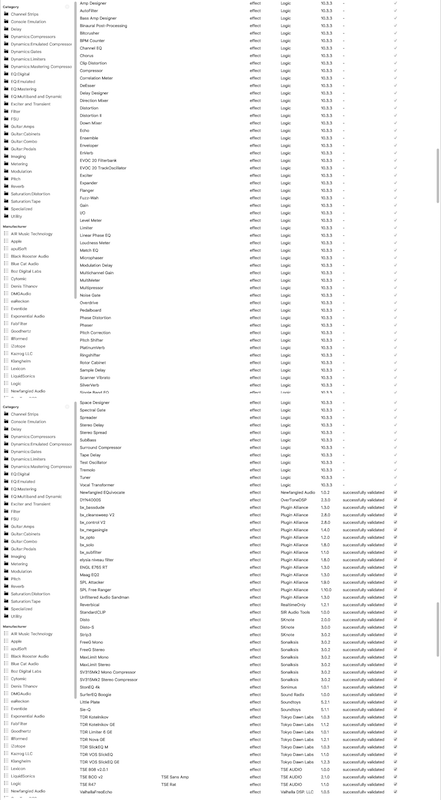
Have you ever wondered how I create those lists of plugins when I do plugin reviews like these: like: Mixbus Effects, Mixbus Instruments, Bitwig Effects, Bitwig Instruments, Cubase Effects, Studio One Effects and Studio One Instruments?
I sure don't type all that out! I have it partially automated. I have a script that does a lot of this for me.
Let me walk you through how I use Tesseract OCR, ImageMagick and Regular Expressions to do the heavy lifting for me. I will walk you through the individual steps of how I process screenshots with OCR, but not the creation of the script that does everything for me.
This post assumes that you are on a Unix or Linux distro. This can be done on Windows, but I won't be covering that.
Note: If it's not obvious, I'm buying a bit of time for my Logic Effects and Instruments reviews again. They're coming, but it's a lot of work!
Contents
- Install the necessary tools
- Image Processing
- Tesseract it
- Format
- Amp Designer
- AutoFilter
- Bass Amp Designer
- Binaural Post-Processing
- Bitcrusher
- BPM Counter
- Channel EQ
- Chorus
- Clip Distortion
- Compressor
- Correlation Meter
- DeEsser
- Delay Designer
- Direction Mixer
- Distortion
- Distortion II
- Down Mixer
- Echo
- Ensemble
- Enveloper
- EnVerb
- EVOC 20 Filterbank
- EVOC 20 TrackOscillator
- Exciter
- Expander
- Flanger
- Fuzz-Wah
- Gain
- IO
- Level Meter
- Limiter
- Linear Phase EQ
- Loudness Meter
- Match EQ
- Microphaser
- Modulation Delay
- Multichannel Gain
- MultiMeter
- Multipressor
- Noise Gate
- Overdrive
- Pedalboard
- Phase Distortion
- Phaser
- Pitch Correction
- Pitch Shifter
- PlatinumVerb
- Ringshifter
- Rotor Cabinet
- Sample Delay
- Scanner Vibrato
- SilverVerb
- Single Band EQ
- Space Designer
- Spectral Gate
- Spreader
- Stereo Delay
- Stereo Spread
- SubBass
- Surround Compressor
- Tape Delay
- Test Oscillator
- Tremolo
- Tuner
- Vocal Transformer
- Conclusion
- Support Me!
Install the necessary tools
I'm using macOS, so for me it's as simple as typing the following commands in the Terminal.app program (or your preferred terminal):
brew install tesseract
brew install imagemagick
If you need to know how to get the brew command installed, then check out this other post. Go to the 'For Newbies' section and follow that until 'homebrew' is installed.
Image Processing
The first steps are to capture and process the images.
Turn off screen capture shadows
macOS by default adds drop shadows to screenshots. Turn it off!
defaults write com.apple.screencapture disable-shadow -bool true && killall SystemUIServer
That's all you gotta do. Now you get nice clean windowed screenshots with cmd-shift-4 followed by space and clicking the window.
Capture the effects list
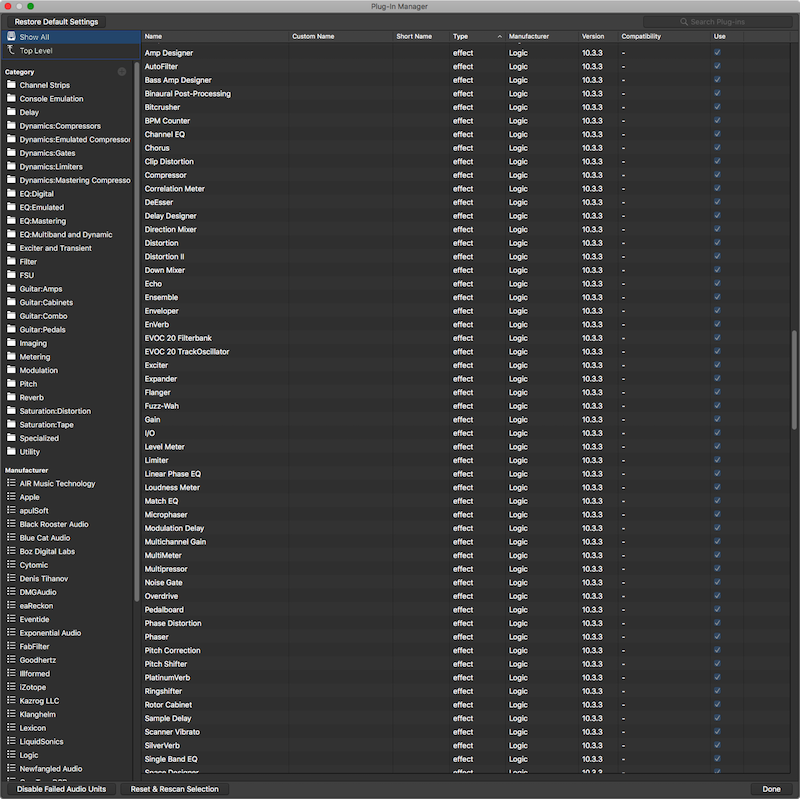
The next step is to capture the list of Logic effects list as an image. Here are the steps I use
- Open the Plug-in Manager
- Sort by Manufacturer
- Sort by Type
- Scroll to 'Logic' so the first effect is at the top
- Use the hotkey
command-shift-4to bring macOS's built in screen capture tool - Use the hotkey
spacebarto switch the capture tool to 'Capture Window'. - Click the plugin manager.
The result is the image that you see above. I do this twice with the plug-in manager scrolled so that I have an image of all of Logic's Effects.
Some DAWs require more images, or fewer.
Rename
I rename the files to DAW1.png DAW2.png etc... First I move all my screenshots to a new folder.
I use the following command from the Desktop: ls -tr Screen*.png | cat -n | while read n f; do mv "$f" "DAW$n.png"; done
ls -tr Screen*.png- Lists the files matching 'Screen' with anything followed by .png. The files are listed in reverse time order.|- sends the previous output to the following commandcat -n- adds a sequential number to each line.|- sends the previous output to the following commandwhile read n; do mv "$f" "DAW$n.png"; done- 'while read' assigns the first word in the line to '$n' and the next word in the line to '$f'. Then I rename each file named $f to "DAW$n.png" with themvcommand
Crop
Before I append the images, I crop the areas that are fixed: The title bar and the buttons on the bottom. This is done with the 2 following commands:
convert DAW*.png -gravity north -chop 0x105 -set filename:f '%t' '%[filename:f].png'convert DAW*.png -gravity south -chop 0x25 -set filename:f '%t' '%[filename:f].png'
This crops the top 105 pixels and bottom 25 pixels from the fileles
Append Images
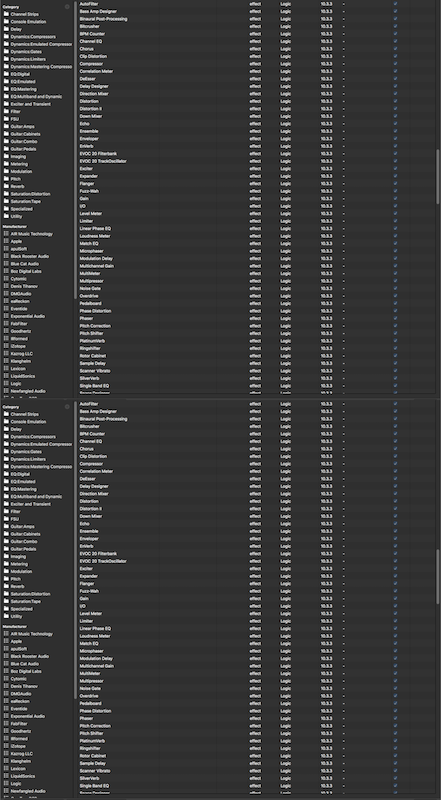
I have 2 or more images now that I need to append. They are on my Desktop. Here's how I append them:
- Rename the files to Logic1.png, Logic2.png etc... (I do this manually)
- Run this command in a terminal, while on the Desktop
convert DAW*.png -append DAWMaster.png
Now you have a single image vertically appended.
Colour adjustments
Tesseract works best with manually adjusted colours. Here's what I've found to work best:
convert -colorspace Gray DAWMaster.png DAWMasterGrey.png- convert to greyscaleconvert DAWMasterGrey.png -channel RGB -negate DAWMasterNegate.png- Invert colours. The-channel RGBis important. That originally took me nearly an hour to figure out.convert DAWMasterNegate.png -level 0%,75% DAWMasterContrast.png- Change the white point to make this more like a black and white image. This is not necessary for all DAWs
Resample
Tesseract works best at about 300dpi, and we can use imagemagick to resample our image to 300dpi with this command:
convert DAWMasterContrast.png -resample 300 DAWMasterResize.png
It's that simple.
Tesseract it
Now we run an OCR tool that converts this image to text.
tesseract DAWMasterResize.png output
The result is a bunch of text. If you browse through it though, you'll see that there's a section where all of our effects column was translated!
cmqu

Channel Strips
Console Emulation

Delay

Dynamics:Compressors

DynamicszEmulated Compresso:

DynamicszGates

DynamicszLimiters

DynamicszMastering Compresso

Eonigital
EQ:Emu|ated
EQ:Mastering

EQ:Multiband and Dynamic

Exciter and Transient
Filter

FSU

Guitar:Amps

Guita r:Cabinets
Guita r:Combo

Guita r: Pedals
Imaging

Metering

Modulation

Pitch

Reverb
SaturationzDistortion
SaturationzTape
Specialized

Utility

Manufacturer

AIR Music Technology
Apple

apulSoft

Black Rooster Audio
Blue Cat Audio
802 Digital Labs
Cytomic

Denis Tihanov
DMGAudio
eaReckon
Eventide
Exponential Audio
FabFilter
Goodhertz
Illformed

iZotope

Kazrog LLC
Klanghelm
Lexicon
LiquidSonics
Logic

Newfangled Audio

A .' BAH

cmxww

Channel Strips
Console Emulation

Delay

Dynamics:Compressors

Dynamics:Emulated Compressor

DynamicszGates

DynamicszLimiters

DynamicszMastering Compresso

EQ:Digital
EQ:Emu|ated
EQ:Mastering

EQ:Multiband and Dynamic

Exciter and Transient
Filter

FSU

Guitar:Amps

Guita r:Cabinets
Guita r:Combo

Guita r: Pedals
Imaging

Metering

Modulation

Pitch

Reverb
SaturationzDistortion
SaturationzTape
Specialized

Utility

Manufacturer

AIR Music Technology
Apple

apulSoft

Black Rooster Audio
Blue Cat Audio
802 Digital Labs
Cytomic

Denis Tihanov
DMGAudio
eaReckon
Eventide
Exponential Audio
FabFilter
Goodhertz
Illformed

iZotope

Kazrog LLC
Klanghelm
Lexicon
LiquidSonics
Logic

Newfangled Audio

A - RAH

Amp Designer
AutoFilter

Bass Amp Designer
Binaural Post-Processing
Bitcrusher

BPM Counter
Channel EQ
Chorus

Clip Distortion
Compressor
Correlation Meter
DeEsser

Delay Designer
Direction Mixer
Distortion
Distortion II
Down Mixer

Echo

Ensemble
Enveloper

EnVerb

EVOC 20 Filterbank
EVOC 20 TrackOscillator
Exciter

Expander

Flanger
Fuzz-Wah

Gain

l/O

Level Meter
Limiter

Linear Phase EQ
Loudness Meter
Match 50
Microphaser
Modulation Delay
Multichannel Gain
MultiMeter
Multipressor
Noise Gate
Overdrive
Pedalboard
Phase Distortion
Phaser

Pitch Correction
Pitch Shifter
PlatinumVerb
Ringshifter

Rotor Cabinet
Sample Delay
Scanner Vibrato

SilverVerb
Rinnln Rand F0

Space Designer
Spectral Gate
Spreader

Stereo Delay

Stereo Spread
SubBass

Surround Compressor
Tape Delay

Test Oscillator
Tremolo

Tuner

Vocal Transformer
Newfangled EQuivocate
DYNAOOOS
bx_bassdude
bx_c|eansweep V2
bx_control V2
bx_megasingle
bx_opto

bx_solo

bx_subfilter

elysia niveau filter
ENGL E765 RT

Maag EQ2

SPL Attacker

SPL Free Ranger
Unfiltered Audio Sandman
Reverbical
StandardCLlP

Disto

Disto-S

Strip3

FreeG Mono

FreeG Stereo
MaxLimit Mono
MaxLimit Stereo
SV315Mk2 Mono Compressor
SV315Mk2 Stereo Compressor
StonEQ 4k

SurferEQ Boogie
Little Plate

Sie-Q

TDR Kotelnikov

TDR Kotelnikov GE
TDR Limiter 6 GE
TDR Nova GE

TDR SlickEQ M

TDR VOS SlickEQ
TDR VOS SlickEQ GE
TSE 808 v2.0.1

TSE BOD v2

TSE R47
ValhallaFreaEcho

TSE Sans Amp
TSE Rat

effect
effect
effect
effect
effect
effect
effect
effect
effect
effect
effect
effect
effect
effect
effect
effect
effect
effect
effect
effect
effect
effect
effect
effect
effect
effect
effect
effect
effect
effect
effect
effect
effect
effect
effect
effect
effect
effect
effect
effect
effect
effect
effect
effect
effect
effect
effect
effect
effect
effect
effect
effect

nffnrt

effect
effect
effect
effect
effect
effect
effect
effect
effect
effect
effect
effect
effect
effect
effect
effect
effect
effect
effect
effect
effect
effect
effect
effect
effect
effect
effect
effect
effect
effect
effect
effect
effect
effect
effect
effect
effect
effect
effect
effect
effect
effect
effect
effect
effect
effect
effect
effect
effect
effect
effect
effect
effect

Logic
Logic
Logic
Logic
Logic
Logic
Logic
Logic
Logic
Logic
Logic
Logic
Logic
Logic
Logic
Logic
Logic
Logic
Logic
Logic
Logic
Logic
Logic
Logic
Logic
Logic
Logic
Logic
Logic
Logic
Logic
Logic
Logic
Logic
Logic
Logic
Logic
Logic
Logic
Logic
Logic
Logic
Logic
Logic
Logic
Logic
Logic
Logic
Logic
Logic
Logic
Logic

I nnir-

Logic

Logic

Logic

Logic

Logic

Logic

Logic

Logic

Logic

Logic

Logic

Logic
Newfangled Audio
OverToneDSP
Plugin Alliance
Plugin Alliance
Plugin Alliance
Plugin Alliance
Plugin Alliance
Plugin Alliance
Plugin Alliance
Plugin Alliance
Plugin Alliance
Plugin Alliance
Plugin Alliance
Plugin Alliance
Plugin Alliance
RealtimeOnly

SIR Audio Tools
SKnote

SKnote

SKnote

Sonalksis
Sonalksis
Sonalksis
Sonalksis
Sonalksis
Sonalksis
Sonimus

Sound Radix
Soundtoys
Soundtoys

Tokyo Dawn Labs
Tokyo Dawn Labs
Tokyo Dawn Labs
Tokyo Dawn Labs
Tokyo Dawn Labs
Tokyo Dawn Labs
Tokyo Dawn Labs
TSE AUDIO

TSE AUDIO

TSE AUDIO
Valhalla DSP. LLC

1033
1033
1033
1033
1033
1033
1033
1033
1033
1033
1033
1033
1033
1033
1033
1033
1033
1033
1033
1033
1033
1033
1033
1033
1033
1033
1033
1033
1033
1033
1033
1033
1033
1033
1033
1033
1033
1033
1033
1033
1033
1033
1033
1033
1033
1033
1033
1033
1033
1033
1033

10.3.3
1n 2 a

1033
1033
1033
1033
1033
1033
1033
1033
1033
1033
1033
1033
102
230
130
200
200
1A0
130
I30
130
I30
130
130
130
1300
130
123
100
200
300
302
302
302
302
302
302
302
103
100
521
511
103
132
103
123
103
130
$33
100
230
130
105

successfully validated
successfully validated
successfully validated
successfully validated
successfully validated
successfully validated
successfully validated
successfully validated
successfully validated
successfully validated
successfully validated
successfully validated
successfully validated
successfully validated
successfully validated
successfully validated
successfully validated
successfully validated
successfully validated
successfully validated
successfully validated
successfully validated
successfully validated
successfully validated
successfully validated
successfully validated
successfully validated
successfully validated
successfully validated
successfully validated
successfully validated
successfully validated
successfully validated
successfully validated
successfully validated
successfully validated
successfully validated
successfully validated
successfully validated
successfully validated

successfullv validated

KKKKKKKKKKKKKKK‘\‘\KKKKKKKK‘\‘\‘\‘\KKKKKKKKKKKKKKKKKKKKKKKK

\KKKKKKKKKKKKKKKKKK\KKKKKKKKKKKKKKKKKKKKK"x’xKKKKKKKKKK
Format
Now this data needs to be formatted.
Prepare RAW data
First I pull out the appropriate information from the tesseract OCR that I ran, and I fix any minor mistakes in the OCR.
I think there was only 3 mistakes that I had to fix.
This is also a good time to replace \n\n with \n.
Amp Designer
AutoFilter
Bass Amp Designer
Binaural Post-Processing
Bitcrusher
BPM Counter
Channel EQ
Chorus
Clip Distortion
Compressor
Correlation Meter
DeEsser
Delay Designer
Direction Mixer
Distortion
Distortion II
Down Mixer
Echo
Ensemble
Enveloper
EnVerb
EVOC 20 Filterbank
EVOC 20 TrackOscillator
Exciter
Expander
Flanger
Fuzz-Wah
Gain
IO
Level Meter
Limiter
Linear Phase EQ
Loudness Meter
Match EQ
Microphaser
Modulation Delay
Multichannel Gain
MultiMeter
Multipressor
Noise Gate
Overdrive
Pedalboard
Phase Distortion
Phaser
Pitch Correction
Pitch Shifter
PlatinumVerb
Ringshifter
Rotor Cabinet
Sample Delay
Scanner Vibrato
SilverVerb
Single Band EQ
Space Designer
Spectral Gate
Spreader
Stereo Delay
Stereo Spread
SubBass
Surround Compressor
Tape Delay
Test Oscillator
Tremolo
Tuner
Vocal Transformer
Blog format
First let me explain how my Jekyll Blog works
The format that I use for images is as follows:
<img src="/assets/directory/file" alt="alt-text">
  <div class="image-caption">description</div>
I have a style that causes any bolded text after an image to appear as a caption. I am changing this in the future, but right now that looks like this:
p > img + strong {
	margin: 0 auto;
	width: 80%;
	text-align: center;
	display: block;
	font-weight: normal;
    border-bottom: 1px solid grey;
}
In vscode I use a snippet to create that by typing 'img' and tab:
"UnLinked Image": {
"prefix": "img",
"body": [
""
"__${4:description}__"
],
"description": "Image standalone"
},
Regex it all!
Now I use Regular Expressions replacement to format the RAW data to a blog post. If you don't know how to use regex in your text editor then go to regex101, select javascript, put the RAW data in 'test string' and open the substitution at the bottom.
- The search regex is:
(\w+)\n(though simply(.+)\nworks as well.) - The replacement regex is:
# \1\n\n\n__\1__\n- I replace the directory with the correct directory for the images.
I don't like spaces in my file names so I then run another regex on the result:
- The search regex is:
\/(\w*|\-)\s*(\w*|\-)\s*(\w*|\-)\s*(\w*|\-)\s*(\w*|\-)\s*.png- This is absolutely idiotic, it really is. I know of no better way to do this with the VSCode regex. You need backreferences to do fancy things like this otherwise. This handles words with up to 5 spaces.- This regex searches for a single
/followed by any word or-character followed by a space. The word before the space is captured. This happens 5 times.
- This regex searches for a single
- The replacement regex is:
\/\1\2\3\4\5.png- This takes our 5 previous captures and puts them in the format of
/filename.png. Pretty simple. Stupid... but simple.
- This takes our 5 previous captures and puts them in the format of
The result:
# Amp Designer

<img src="/assets/directory/AmpDesigner.png" alt="Amp Designer">
  <div class="image-caption">Amp Designer</div>

# AutoFilter

<img src="/assets/directory/AutoFilter.png" alt="AutoFilter">
  <div class="image-caption">AutoFilter</div>

# Bass Amp Designer

<img src="/assets/directory/BassAmpDesigner.png" alt="Bass Amp Designer">
  <div class="image-caption">Bass Amp Designer</div>

# Binaural Post-Processing

<img src="/assets/directory/BinauralPost-.png" alt="Binaural Post-Processing">
  <div class="image-caption">Binaural Post-Processing</div>

# Bitcrusher

<img src="/assets/directory/Bitcrusher.png" alt="Bitcrusher">
  <div class="image-caption">Bitcrusher</div>

# BPM Counter

<img src="/assets/directory/BPMCounter.png" alt="BPM Counter">
  <div class="image-caption">BPM Counter</div>

# Channel EQ

<img src="/assets/directory/ChannelEQ.png" alt="Channel EQ">
  <div class="image-caption">Channel EQ</div>

# Chorus

<img src="/assets/directory/Chorus.png" alt="Chorus">
  <div class="image-caption">Chorus</div>

# Clip Distortion

<img src="/assets/directory/ClipDistortion.png" alt="Clip Distortion">
  <div class="image-caption">Clip Distortion</div>

# Compressor

<img src="/assets/directory/Compressor.png" alt="Compressor">
  <div class="image-caption">Compressor</div>

# Correlation Meter

<img src="/assets/directory/CorrelationMeter.png" alt="Correlation Meter">
  <div class="image-caption">Correlation Meter</div>

# DeEsser

<img src="/assets/directory/DeEsser.png" alt="DeEsser">
  <div class="image-caption">DeEsser</div>

# Delay Designer

<img src="/assets/directory/DelayDesigner.png" alt="Delay Designer">
  <div class="image-caption">Delay Designer</div>

# Direction Mixer

<img src="/assets/directory/DirectionMixer.png" alt="Direction Mixer">
  <div class="image-caption">Direction Mixer</div>

# Distortion

<img src="/assets/directory/Distortion.png" alt="Distortion">
  <div class="image-caption">Distortion</div>

# Distortion II

<img src="/assets/directory/DistortionII.png" alt="Distortion II">
  <div class="image-caption">Distortion II</div>

# Down Mixer

<img src="/assets/directory/DownMixer.png" alt="Down Mixer">
  <div class="image-caption">Down Mixer</div>

# Echo

<img src="/assets/directory/Echo.png" alt="Echo">
  <div class="image-caption">Echo</div>

# Ensemble

<img src="/assets/directory/Ensemble.png" alt="Ensemble">
  <div class="image-caption">Ensemble</div>

# Enveloper

<img src="/assets/directory/Enveloper.png" alt="Enveloper">
  <div class="image-caption">Enveloper</div>

# EnVerb

<img src="/assets/directory/EnVerb.png" alt="EnVerb">
  <div class="image-caption">EnVerb</div>

# EVOC 20 Filterbank

<img src="/assets/directory/EVOC20Filterbank.png" alt="EVOC 20 Filterbank">
  <div class="image-caption">EVOC 20 Filterbank</div>

# EVOC 20 TrackOscillator

<img src="/assets/directory/EVOC20TrackOscillator.png" alt="EVOC 20 TrackOscillator">
  <div class="image-caption">EVOC 20 TrackOscillator</div>

# Exciter

<img src="/assets/directory/Exciter.png" alt="Exciter">
  <div class="image-caption">Exciter</div>

# Expander

<img src="/assets/directory/Expander.png" alt="Expander">
  <div class="image-caption">Expander</div>

# Flanger

<img src="/assets/directory/Flanger.png" alt="Flanger">
  <div class="image-caption">Flanger</div>

# Fuzz-Wah

<img src="/assets/directory/Fuzz-.png" alt="Fuzz-Wah">
  <div class="image-caption">Fuzz-Wah</div>

# Gain

<img src="/assets/directory/Gain.png" alt="Gain">
  <div class="image-caption">Gain</div>

# IO

<img src="/assets/directory/IO.png" alt="IO">
  <div class="image-caption">I/O</div>

# Level Meter

<img src="/assets/directory/LevelMeter.png" alt="Level Meter">
  <div class="image-caption">Level Meter</div>

# Limiter

<img src="/assets/directory/Limiter.png" alt="Limiter">
  <div class="image-caption">Limiter</div>

# Linear Phase EQ

<img src="/assets/directory/LinearPhaseEQ.png" alt="Linear Phase EQ">
  <div class="image-caption">Linear Phase EQ</div>

# Loudness Meter

<img src="/assets/directory/LoudnessMeter.png" alt="Loudness Meter">
  <div class="image-caption">Loudness Meter</div>

# Match EQ

<img src="/assets/directory/MatchEQ.png" alt="Match EQ">
  <div class="image-caption">Match EQ</div>

# Microphaser

<img src="/assets/directory/Microphaser.png" alt="Microphaser">
  <div class="image-caption">Microphaser</div>

# Modulation Delay

<img src="/assets/directory/ModulationDelay.png" alt="Modulation Delay">
  <div class="image-caption">Modulation Delay</div>

# Multichannel Gain

<img src="/assets/directory/MultichannelGain.png" alt="Multichannel Gain">
  <div class="image-caption">Multichannel Gain</div>

# MultiMeter

<img src="/assets/directory/MultiMeter.png" alt="MultiMeter">
  <div class="image-caption">MultiMeter</div>

# Multipressor

<img src="/assets/directory/Multipressor.png" alt="Multipressor">
  <div class="image-caption">Multipressor</div>

# Noise Gate

<img src="/assets/directory/NoiseGate.png" alt="Noise Gate">
  <div class="image-caption">Noise Gate</div>

# Overdrive

<img src="/assets/directory/Overdrive.png" alt="Overdrive">
  <div class="image-caption">Overdrive</div>

# Pedalboard

<img src="/assets/directory/Pedalboard.png" alt="Pedalboard">
  <div class="image-caption">Pedalboard</div>

# Phase Distortion

<img src="/assets/directory/PhaseDistortion.png" alt="Phase Distortion">
  <div class="image-caption">Phase Distortion</div>

# Phaser

<img src="/assets/directory/Phaser.png" alt="Phaser">
  <div class="image-caption">Phaser</div>

# Pitch Correction

<img src="/assets/directory/PitchCorrection.png" alt="Pitch Correction">
  <div class="image-caption">Pitch Correction</div>

# Pitch Shifter

<img src="/assets/directory/PitchShifter.png" alt="Pitch Shifter">
  <div class="image-caption">Pitch Shifter</div>

# PlatinumVerb

<img src="/assets/directory/PlatinumVerb.png" alt="PlatinumVerb">
  <div class="image-caption">PlatinumVerb</div>

# Ringshifter

<img src="/assets/directory/Ringshifter.png" alt="Ringshifter">
  <div class="image-caption">Ringshifter</div>

# Rotor Cabinet

<img src="/assets/directory/RotorCabinet.png" alt="Rotor Cabinet">
  <div class="image-caption">Rotor Cabinet</div>

# Sample Delay

<img src="/assets/directory/SampleDelay.png" alt="Sample Delay">
  <div class="image-caption">Sample Delay</div>

# Scanner Vibrato

<img src="/assets/directory/ScannerVibrato.png" alt="Scanner Vibrato">
  <div class="image-caption">Scanner Vibrato</div>

# SilverVerb

<img src="/assets/directory/SilverVerb.png" alt="SilverVerb">
  <div class="image-caption">SilverVerb</div>

# Single Band EQ

<img src="/assets/directory/SingleBandEQ.png" alt="Single Band EQ">
  <div class="image-caption">Single Band EQ</div>

# Space Designer

<img src="/assets/directory/SpaceDesigner.png" alt="Space Designer">
  <div class="image-caption">Space Designer</div>

# Spectral Gate

<img src="/assets/directory/SpectralGate.png" alt="Spectral Gate">
  <div class="image-caption">Spectral Gate</div>

# Spreader

<img src="/assets/directory/Spreader.png" alt="Spreader">
  <div class="image-caption">Spreader</div>

# Stereo Delay

<img src="/assets/directory/StereoDelay.png" alt="Stereo Delay">
  <div class="image-caption">Stereo Delay</div>

# Stereo Spread

<img src="/assets/directory/StereoSpread.png" alt="Stereo Spread">
  <div class="image-caption">Stereo Spread</div>

# SubBass

<img src="/assets/directory/SubBass.png" alt="SubBass">
  <div class="image-caption">SubBass</div>

# Surround Compressor

<img src="/assets/directory/SurroundCompressor.png" alt="Surround Compressor">
  <div class="image-caption">Surround Compressor</div>

# Tape Delay

<img src="/assets/directory/TapeDelay.png" alt="Tape Delay">
  <div class="image-caption">Tape Delay</div>

# Test Oscillator

<img src="/assets/directory/TestOscillator.png" alt="Test Oscillator">
  <div class="image-caption">Test Oscillator</div>

# Tremolo

<img src="/assets/directory/Tremolo.png" alt="Tremolo">
  <div class="image-caption">Tremolo</div>

# Tuner

<img src="/assets/directory/Tuner.png" alt="Tuner">
  <div class="image-caption">Tuner</div>

# Vocal Transformer

<img src="/assets/directory/VocalTransformer.png" alt="Vocal Transformer">
  <div class="image-caption">Vocal Transformer</div>
Conclusion
I have a script that does the image processing and OCR for me, which I leave as an exercise to the reader. This is how I get lists of things from DAWs and make these long review articles!
It's still a lot of work to screenshot all of the plugins in the DAW though. There's no easy way around that that I know of... yet. I have a program that will generate screenshots of a directory of VST or AU plugins, but that doesn't show the DAW's native window nor does it work with most stock plugins.
Generating these lists of plugins generally take me about ~5 minutes total. Usually the most work is editing small issues like /'s in the plugin name (such as I/O).
You'll see what this looks like on the blog soon!
Support Me!
This post took 2 hours to research, screenshot, write and edit. If you appreciate the information presented then please consider joining patreon or donating!
If you appreciate the information presented then please consider joining Patreon or donating money/time.